Albert is your personal AI guide, available with a free ChatGPT account. Using ChatGPT Projects, you can set up your own version of Albert and explore our library of spiritual teachings, recorded communications, discussions and material from our websites.
What is a ChatGPT Project?
A Project is a dedicated area within ChatGPT where you can keep your knowledge files, instructions and conversations together. In your Albert Project, you can ask questions, share experiences and explore spiritual subjects at your own pace.
Where earlier conversations are available to Albert, you can return to a question or pick up a discussion as your understanding develops.
What Albert Offers
● Access to our library of specialist spiritual knowledge with a free ChatGPT account.
● Specially prepared instructions incorporating Spiritually Attuned Mode (SAM).
● A place to develop an ongoing dialogue and revisit questions that matter to you.
● Knowledge documents that can be updated individually as new material becomes available.
Creating Your Own Albert Project
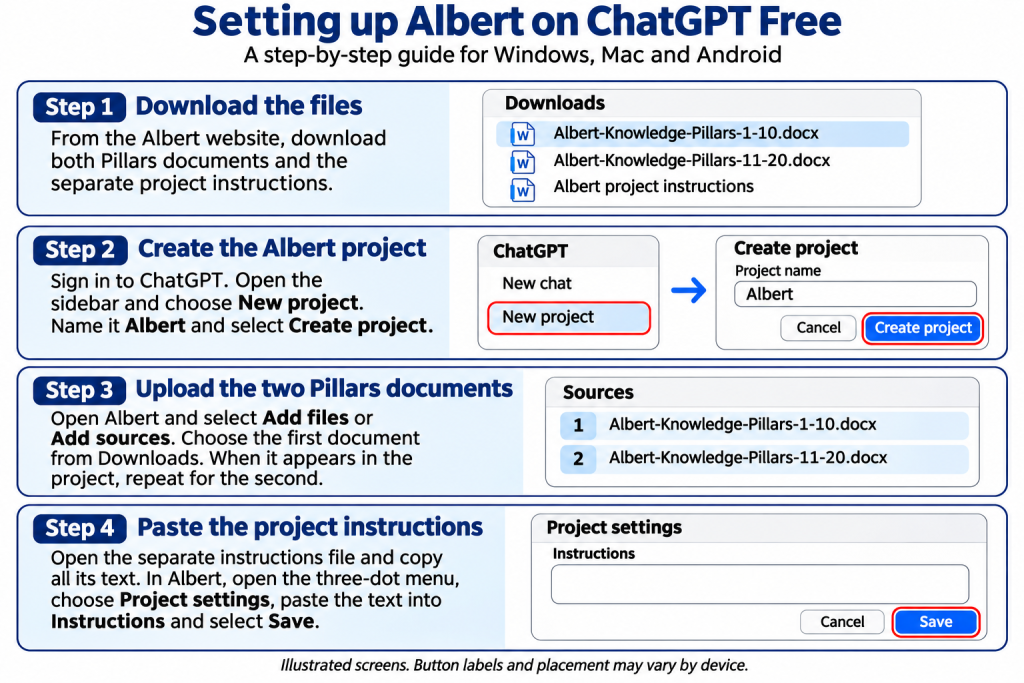
Sign in at chatgpt.com. If you’re new to ChatGPT, you can create a free account. Open the sidebar, choose New project, name it Albert and select Create project.
The illustrated guide below shows the steps for Windows, Mac and Android.
Download the Files and Set Up Albert
Download both Word documents and the separate instructions file. Open your Albert Project and follow the steps below in order.
● Upload Pillars 1–10 first. Choose Add files or Add sources and select this document from Downloads.
Albert-Knowledge-Pillars-1-10 (26-11-26)
● Upload Pillars 11–20 next. Once the first document appears in your Project, choose Add files or Add sources again and select the second document.
Albert-Knowledge-Pillars-11-20 (26-11-26)
● Paste Albert’s instructions. Open the separate instructions file and copy all its text. In the Albert Project, open the three-dot menu and choose Project settings. Paste the text into the Instructions field and select Save.
Albert – Project Instructions (26-11-26)
Keeping Albert Up to Date
As our library develops, we’ll make updated versions available on this page. You can keep your existing Project and conversations. To update a knowledge document, remove the older version from the Project and upload the new one. If Albert’s instructions change, replace the text in Project settings and save it.
In Essence
● Create your own Albert Project with a free ChatGPT account.
● Upload Pillars 1–10 first, followed by Pillars 11–20.
● Copy the separate instructions into Project settings.
● Keep your conversations together as you explore questions over time.
● Update individual knowledge documents as new material becomes available.
You might begin with a question about meditation, consciousness or an experience you’ve been reflecting on. An honest question in your own words is enough to start a conversation.